Introduction
QRPickle is a simple, lightweight dashboard designed for portable, QRP, and field-day amateur radio operations. Built to run on a standard ESP32 Cheap Yellow Display (CYD) with no external PSRAM, it consolidates real-time tracking data and tools into a clean, easy-to-use touchscreen interface.
This project is inspired by cburns42/HamClockCYD and SP3KON/ESP32-HAM-CLOCK, which resulted in a group build at BARC with VU3GWN forking it to (coffeedev/BARC-HAM-CLOCK).
TL;DR: install QRPickle from your browser with the one-click web installer (Chrome or Edge, and a USB data cable).
⚠ DEVELOPED & GENERATED BY A LARGE LANGUAGE MODEL (LLM) ⚠
This codebase, firmware architecture, network parsing engine, memory management schema, and layout optimization layers were designed, audited, and developed using a Large Language Model (LLM).
Device Interface
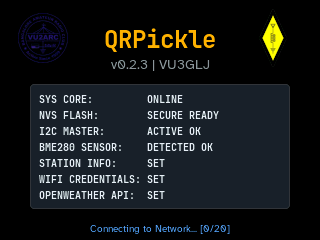
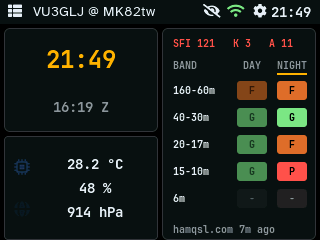
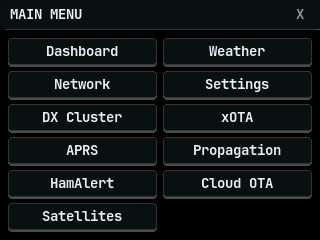
| Boot & Splash | Main Dashboard | App Menu |
|---|---|---|
 |
 |
 |
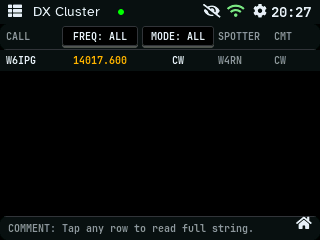
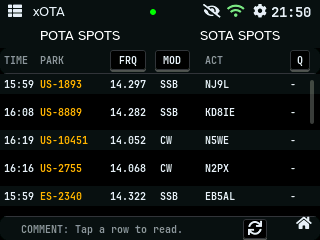
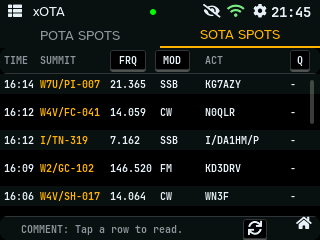
| DX Cluster | POTA Spots | SOTA Spots |
 |
 |
 |
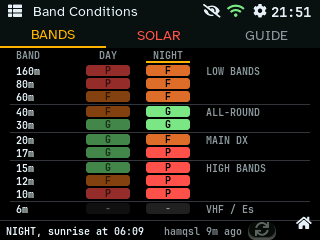
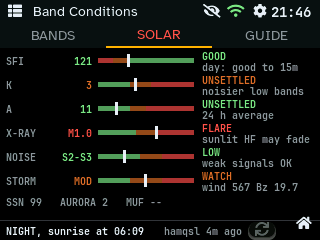
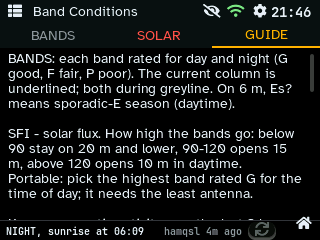
| Band Conditions | Solar Indicators | Reading the Indicators |
 |
 |
 |
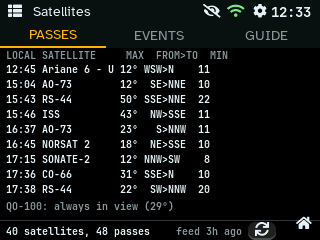
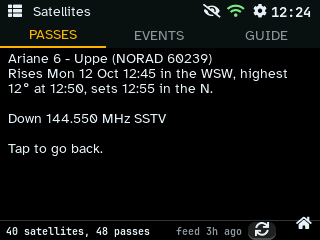
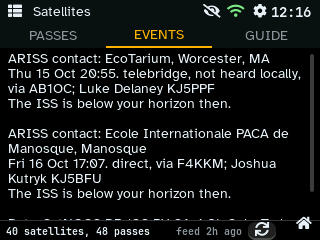
| Satellite Passes | A Pass | SSTV & School Contacts |
 |
 |
 |
| APRS Traffic | APRS Radar | APRS Messages |
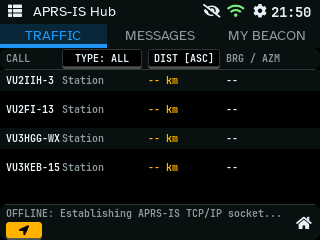 |
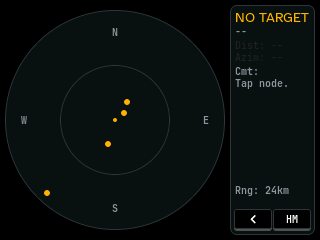 |
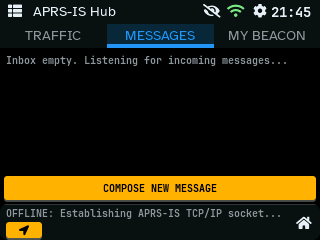 |
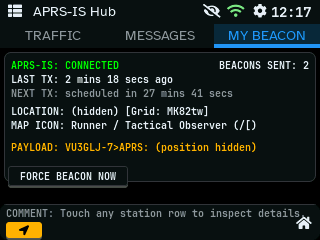
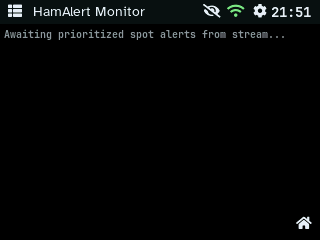
| APRS Quick Messages | APRS Beacon | HamAlert |
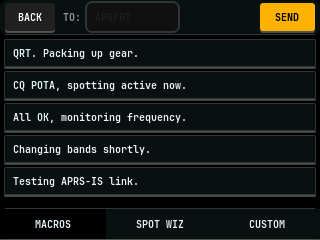 |
 |
 |
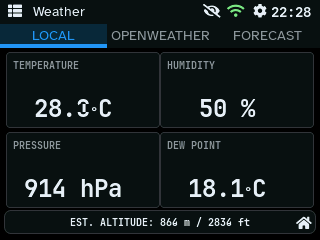
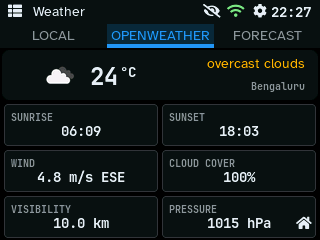
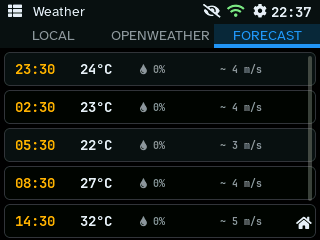
| Local Sensor | OpenWeather | Forecast |
 |
 |
 |
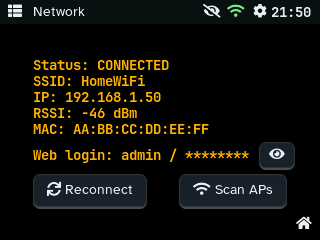
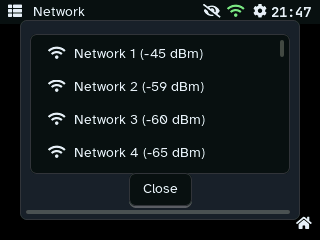
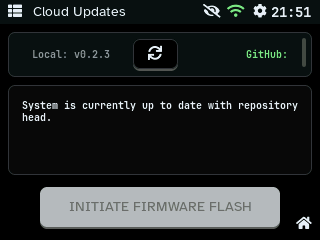
| Network | WiFi Scan | Cloud Updates |
 |
 |
 |
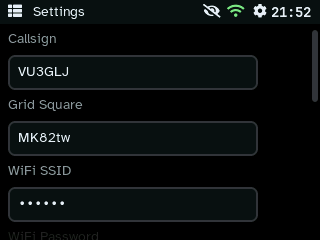
| On-Device Settings | On-Screen Keyboard | |
 |
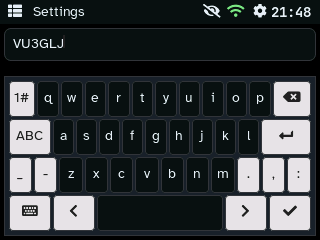 |
Screenshots are taken on the device
(tools/device_screens.py, Classic theme); network names,
addresses and positions are replaced or hidden in them. Smart
sleep: after the screen timeout the backlight turns off; a
touch wakes it (the first touch only wakes).
Web Management Console
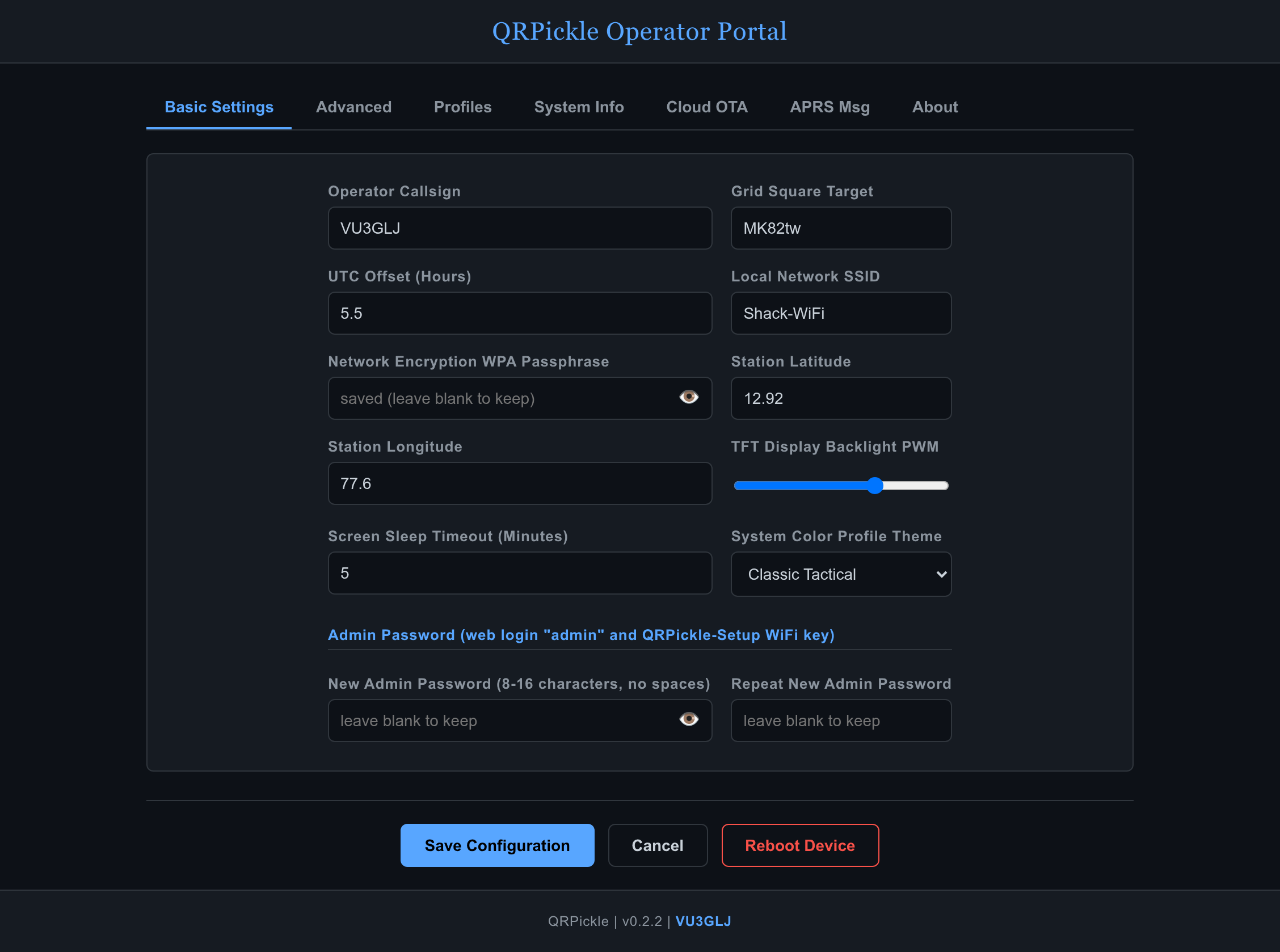
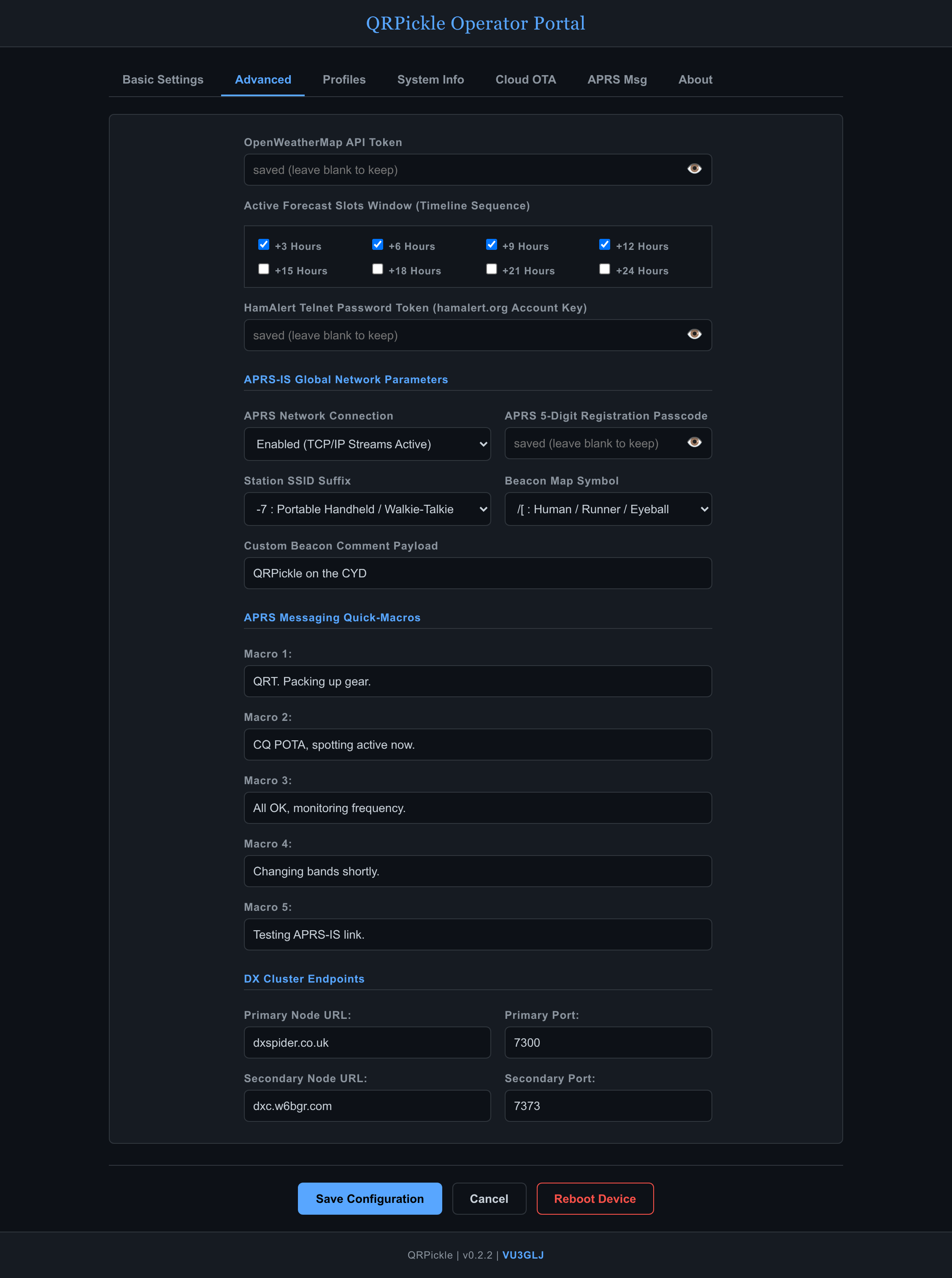
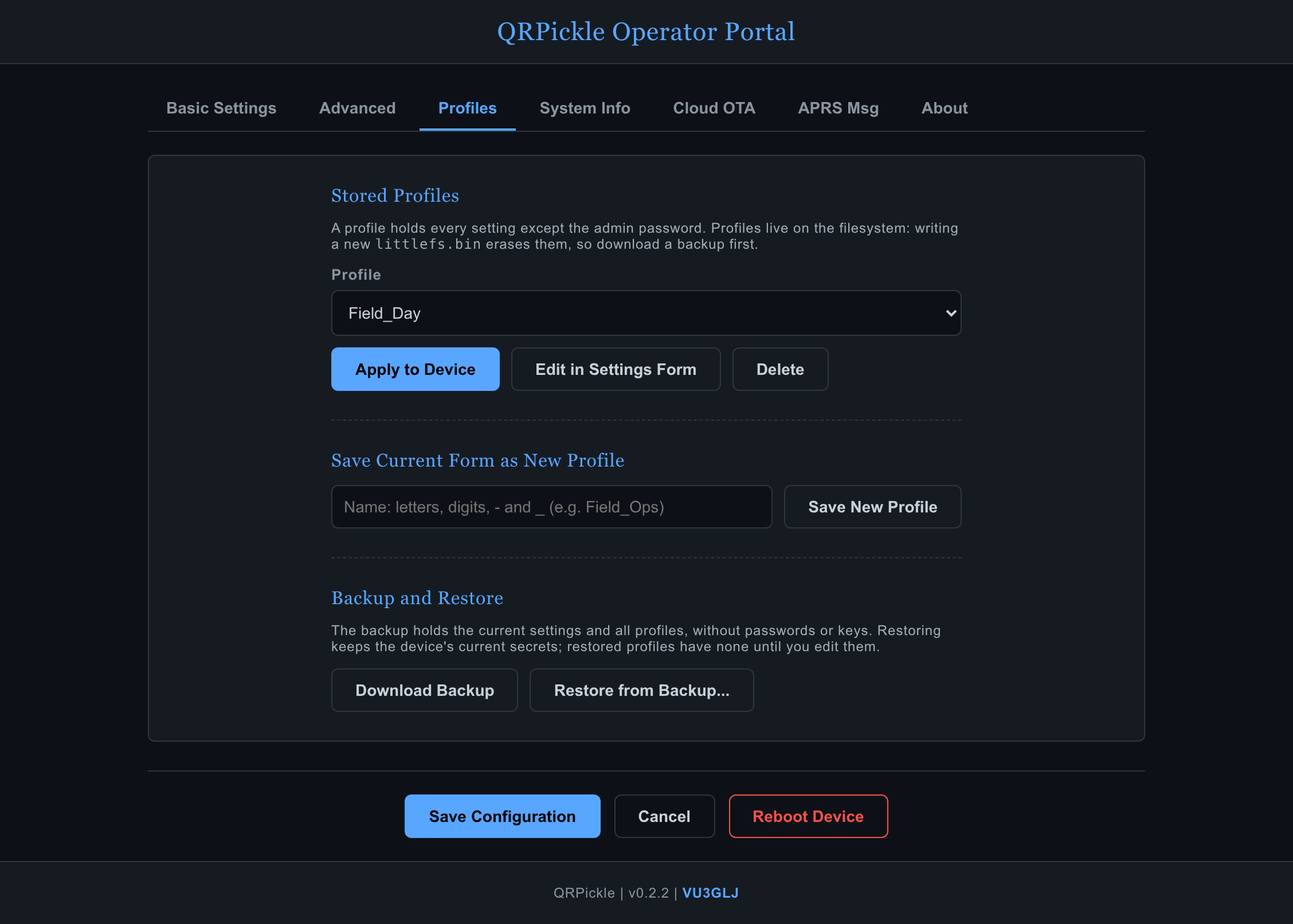
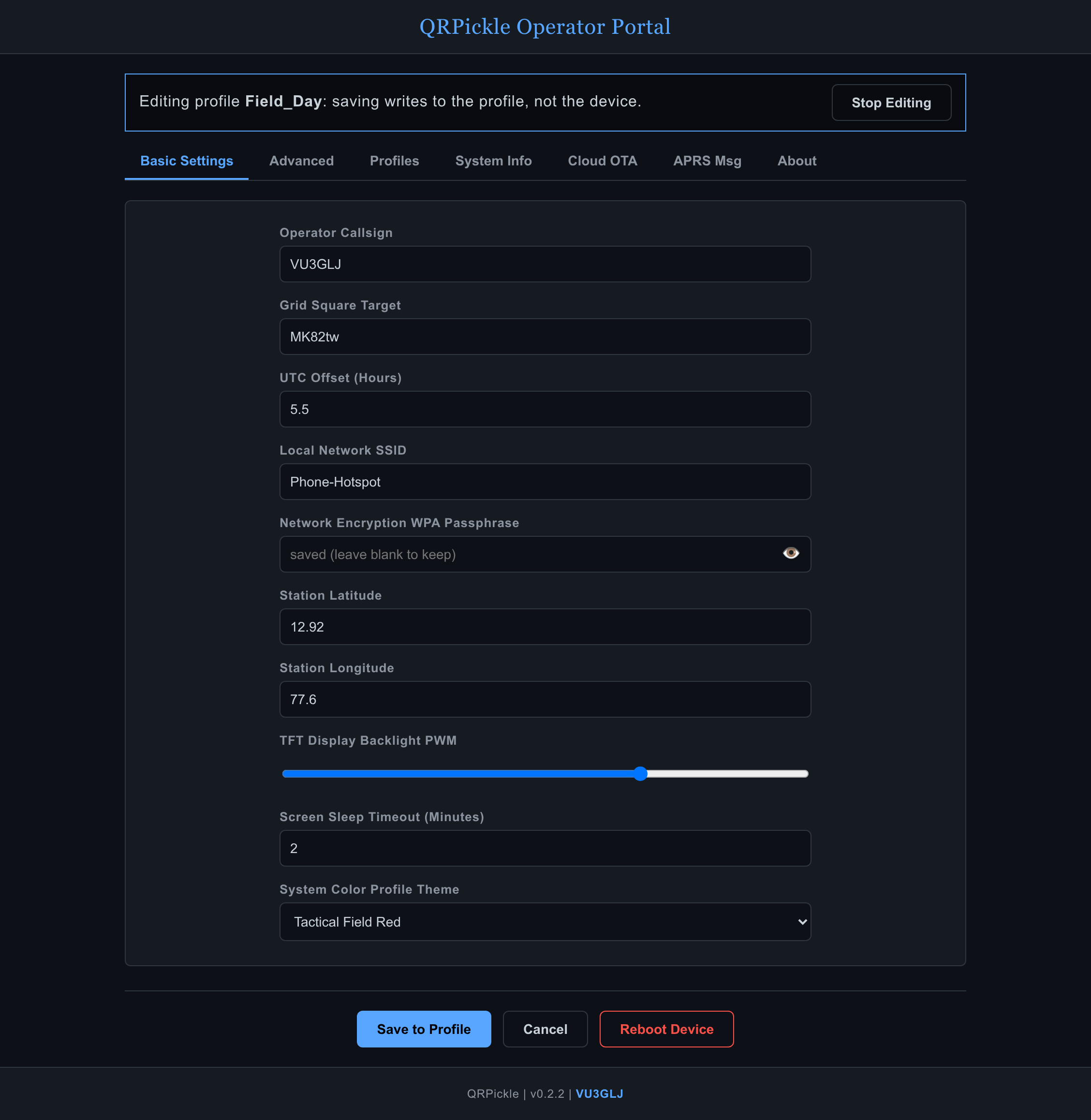
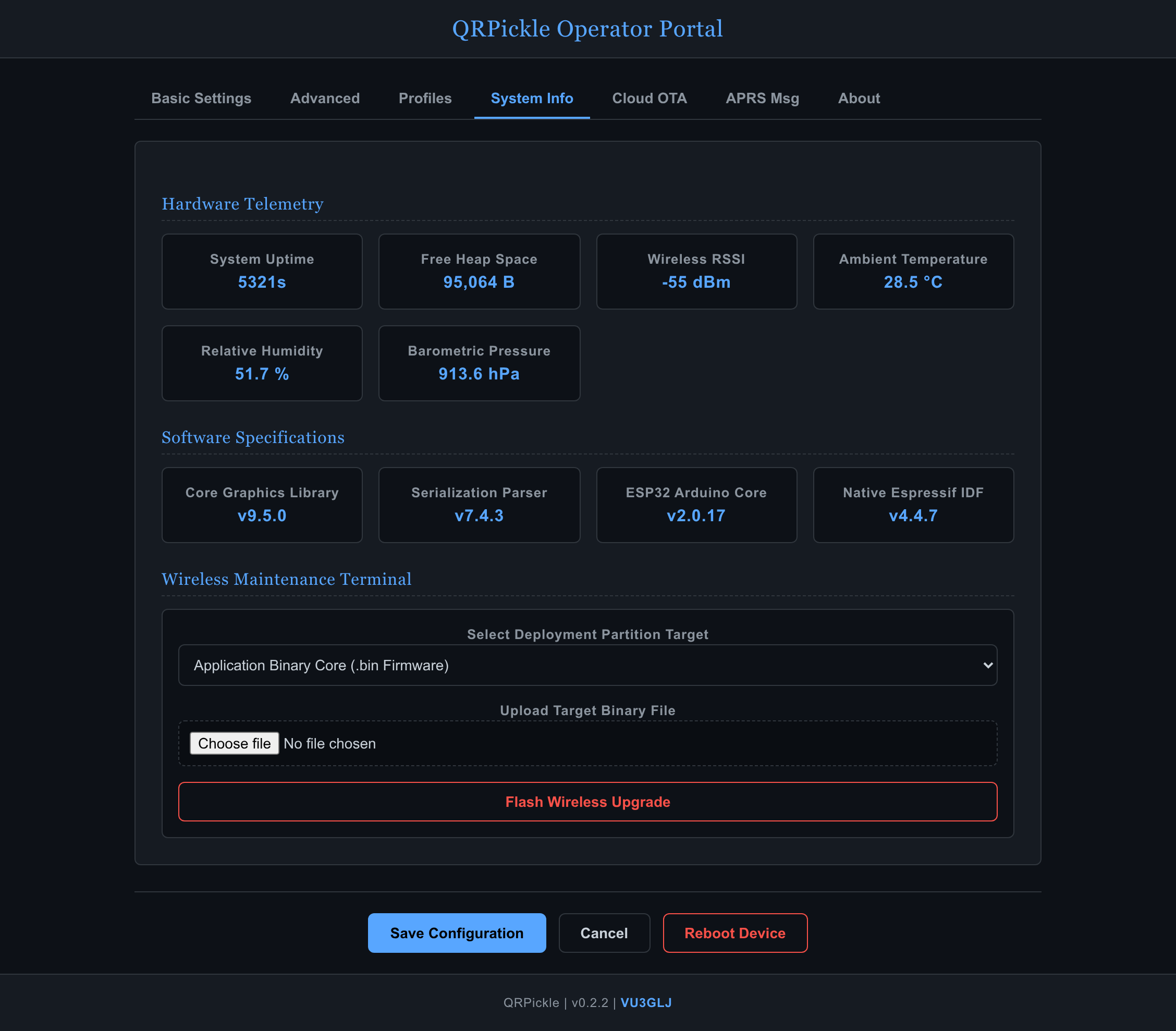
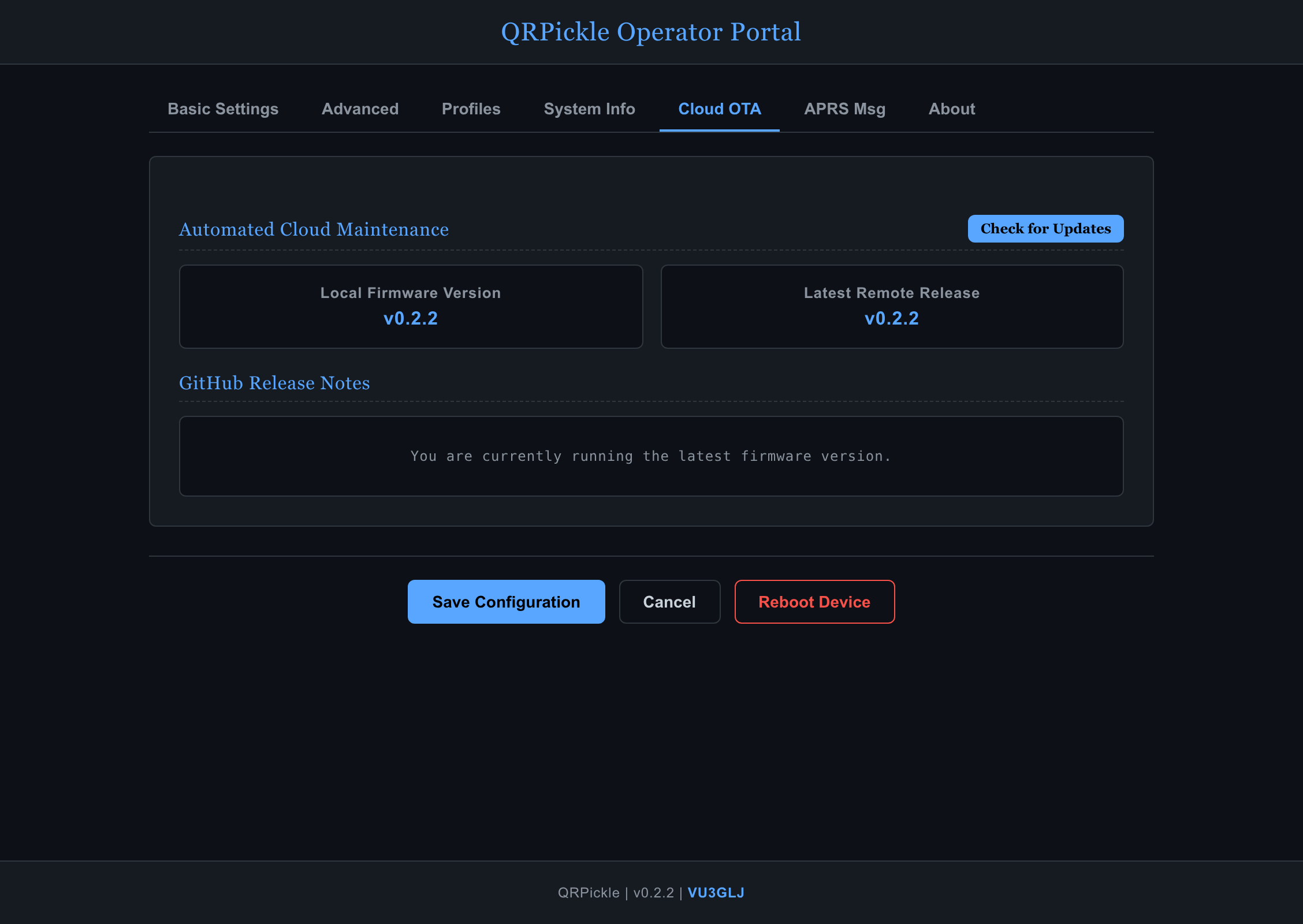
When on the same network, navigate to the device’s IP address to access the integrated Web UI. The UI interacts with the C++ backend via asynchronous REST API endpoints.
| Basic Network & Station Config | Advanced Settings |
|---|---|
 |
 |
| Profiles, Backup & Restore | Editing a Profile in the Settings Form |
 |
 |
| Live Hardware Telemetry & Manual Update | Cloud OTA |
 |
 |
| APRS Messaging | |
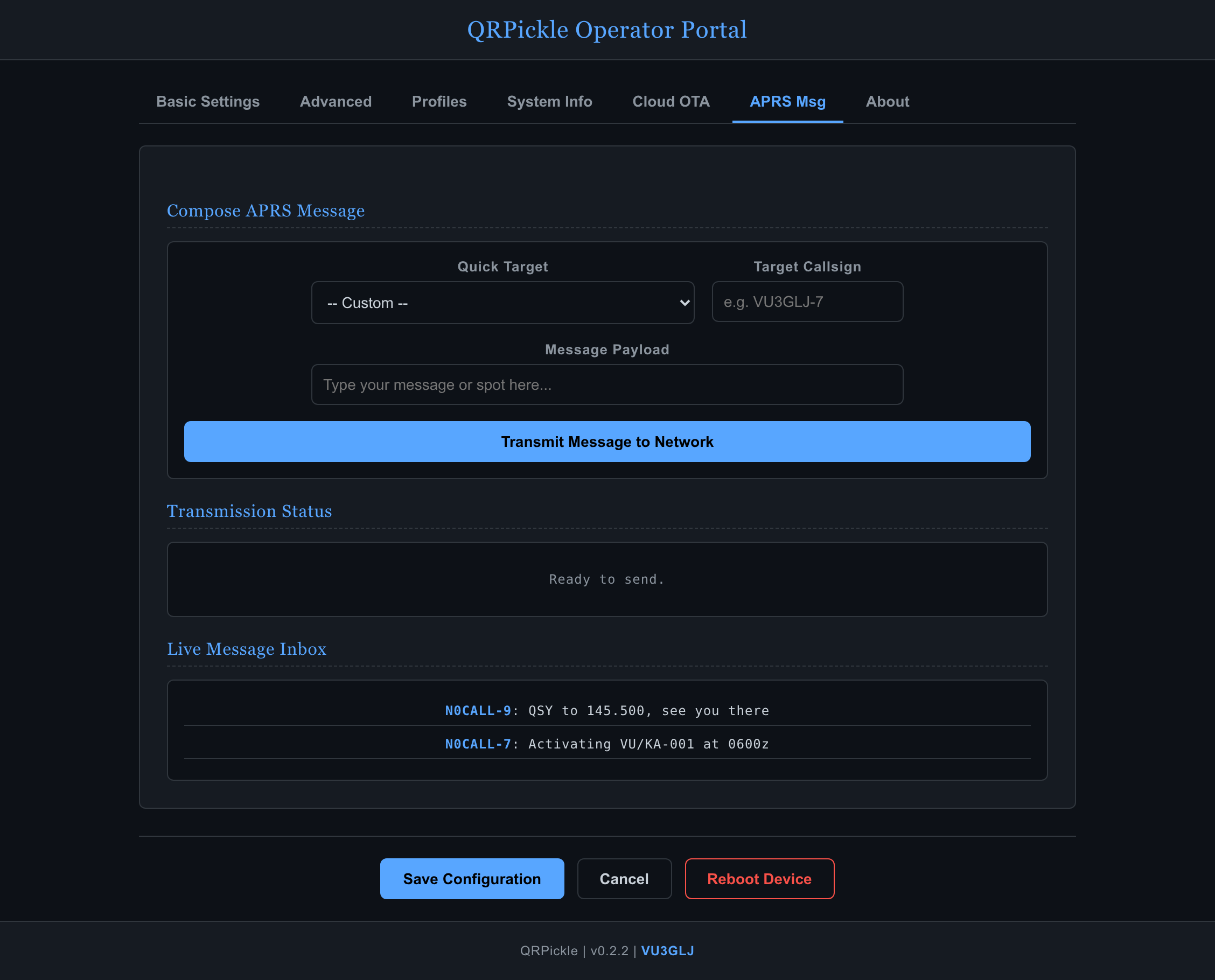 |
Web Console Login
The web console and the QRPickle-Setup hotspot are
password-protected.
- Username:
admin - Password: generated on first boot. It’s shown on the device’s Network screen (the serial boot log masks it). The same password is the WPA2 key for the setup hotspot.
- Changing it: Basic Settings → Admin Password (8-16 characters, no spaces), then Save Configuration. The browser then asks you to log in again, and the setup hotspot uses the new password.
Saved secrets (WiFi password, API keys, passcodes) are never shown again in the web console. Leave those fields blank to keep the stored values.
Note: saved profiles store their WiFi credentials on the device’s filesystem, so they can switch networks. The flash is not encrypted. A profile without a stored password or key keeps the device’s current one when applied. Backups never contain secrets.
Features and Data Sources
What each screen shows and where its data comes from. Accounts and keys are entered in the web console and stay on the device.
| Screen | What it shows | Data from |
|---|---|---|
| Dashboard | Local and UTC time, indoor sensor and weather, band conditions for your chosen band groups | the screens below |
| DX Cluster | Live DX spots, filtered by band and mode | DX cluster over telnet (default
dxspider.co.uk:7300, fallback
dxc.w6bgr.com:7373; both configurable) |
| xOTA | POTA and SOTA activators on air, filtered by band, mode and QRP | POTA
(api.pota.app); SOTA
cluster (cluster.sota.org.uk, telnet) |
| HamAlert | Spots matching your own triggers | HamAlert (your account, telnet) |
| APRS | Stations heard (list and radar), messages, your position beacon | APRS-IS
(rotate.aprs.net; your callsign and passcode) |
| Band Conditions | 11 bands (160 m to 6 m) rated for day and night at your location, greyline, next sunrise/sunset, solar indicators explained (how bands are rated) | HAMQSL.com solar data, courtesy of N0NBH (every 3 hours, hourly in storms), or your own source |
| Satellites | The next passes over your station of popular amateur satellites (FM, linear, SSTV, voice beacons, optionally APRS) with times, directions and frequencies; ISS SSTV events and ARISS school contacts | A feed built every 6 hours from SatNOGS DB (CC BY-SA 4.0), CelesTrak orbits and ARISS (about the feed); passes computed on the device, your location is never sent |
| Weather | Indoor temperature, humidity and pressure; current conditions and a 24-hour forecast | BME280 sensor (optional, wiring); OpenWeather (your free API key) |
| Network, Settings, Cloud OTA | WiFi, station and display settings on the device; updates | GitHub Pages for
updates; time from pool.ntp.org |
On the device
- Screen cycling: chosen screens in turn (10 s each by default); a touch pauses it, a status-bar icon shows and toggles it.
- Status LED: setup and network states, a faint pulse when data arrives, a strobe for HamAlert or APRS messages, and a purple signal before ISS SSTV and school-contact passes (LED Colours).
- Themes: 7 themes in LVGL 9, including Tactical Field Red, Terminal Green and two E-Ink styles.
- Display: sleep timeout, manual or automatic brightness (light sensor).
- Privacy: passwords and network details are masked on screen and in the serial log.
Web console and updates
- Web console: every setting, profiles (save and
switch complete setups for home, mobile and field; download/restore a
backup without passwords and keys), APRS messaging and system
information. Digest login; the setup hotspot (
192.168.4.1) takes over when no network is reachable. - Updates: firmware upload in the web console, or Cloud OTA from GitHub Pages with a mandatory SHA-256 and verified HTTPS. A new image that doesn’t come up healthy within 3 boots is rolled back. First installs: the web installer.
How it fits on an ESP32 without PSRAM
- One network session at a time and streamed JSON parsing keep HTTPS (about 40 KB per session) within memory; long-running work runs in background tasks, never in the UI loop (memory budget).
- WiFi transmit power is capped (15 dBm) to avoid brownouts on the CYD’s regulator.
- Guides for hardware, releasing, debugging and assets: docs/.
Time Zone Note
QRPickle uses a fixed UTC offset (in half-hour steps), with no automatic daylight saving. In regions that observe DST, change the offset in Settings twice a year. Most ham-radio activity is logged in UTC, which is always shown correctly.
Downloading Pre-Compiled Releases
You do not need to install VS Code or PlatformIO to use QRPickle. Pre-compiled binaries for the CYD are available in the repository releases.
Download the
latest release binaries (every release also lists
firmware.bin.sha256 for integrity checks)
The release folder contains the following files:
firmware.bin(The core C++ application)littlefs.bin(The Web UI and filesystem data)bootloader.bin&partitions.bin(Low-level ESP32 boot structures)License,THIRD_PARTY_NOTICES.mdand the font licences (OFL-*.txt) (in the ZIP)
Easy Web Installation (No Software Required)
One-click installer (from v0.2.0): open quixotic.bharathpalavalli.com/QRPickle/install in Chrome or Edge, pick a version (the latest is preselected; the last five releases are listed), connect the CYD by USB and click Install. It writes everything, including the filesystem. If you’re updating a device that already has profiles, download a backup first (web console → Profiles → Download Backup).
Manual alternative: flash the release files with the Espressif Web Flasher.
- Connect your CYD to your computer via USB.
- Open the Espressif Web Flasher Tool.
- Set your baud rate to
921600and click Connect. - Add the release files to the flash tool using their exact partition
offsets:
0x1000➔bootloader.bin0x8000➔partitions.bin0x10000➔firmware.bin0x390000➔littlefs.bin
- Click Program and wait for the process to finish. The device will automatically reboot into QRPickle!
- And the device should boot up, and create a WiFi access-point called
QRPickle-Setupprotected with the admin password shown on the device’s Network screen (see Web Console Login).
Hardware and Wiring
QRPickle runs on the ESP32-2432S028R “Cheap Yellow Display” (CYD), the 2.8” ILI9341 version with a resistive touch screen. Nothing needs soldering. The only optional extra is a BME280 sensor for indoor temperature, humidity and pressure.
Board pinout
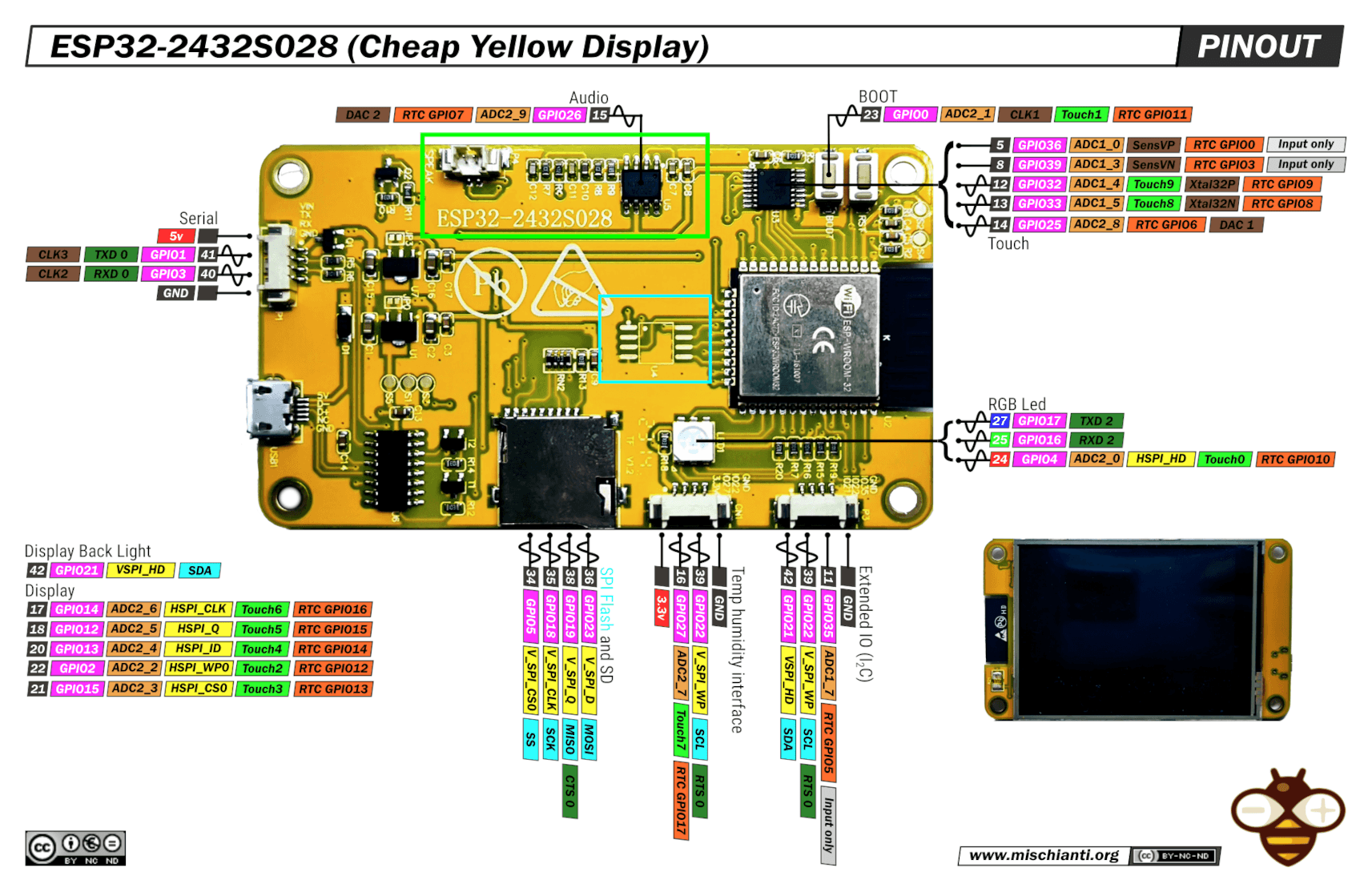
“ESP32-2432S028 (Cheap Yellow Display) pinout” by Renzo Mischianti, from ESP32-2432S028 (Cheap Yellow Display): high-resolution pinout, datasheet, schema and specs on mischianti.org. Licensed under CC BY-NC-ND 4.0; reproduced unmodified. This image is not covered by QRPickle’s MIT licence (see third-party images).
The BME280 connector is the one labelled “Temp humidity interface” (CN1) at the bottom of the image.
Not the 3.2” board. The ESP32-2432S032 (“CYD v2”) uses a different display and pin map, so QRPickle doesn’t support it.
The board
The reference CYD (checked with esptool flash_id and the
boot log):
| Item | Value |
|---|---|
| Chip | ESP32-D0WD-V3 (revision v3.1), dual core, 240 MHz, WiFi + Bluetooth |
| Flash | 4 MB |
| PSRAM | none |
| Display | 2.8” ILI9341, 320 x 240 |
| Touch | XPT2046, resistive |
Pins QRPickle uses
These come from src/hw/User_Setup.h,
src/hw/touch.cpp, src/hw/sensor.cpp,
src/hw/led_rgb.cpp and
src/services/display_manager.cpp.
| Function | GPIO | Notes |
|---|---|---|
| Display SPI | MISO 12, MOSI 13, SCLK 14, CS 15, DC 2 | Reset is wired to 3.3V on the board |
| Display backlight | 21 | PWM; also appears on connector P3, so don’t use it there |
| Touch SPI | MOSI 32, MISO 39, CLK 25, CS 33 | Separate SPI bus |
| Light sensor (LDR) | 34 (ADC1 channel 6) | Auto-brightness |
| RGB status LED | R 4, G 16, B 17 | Active low; colours: LEDColours.md |
| BME280 (I2C) | SDA 27, SCL 22 | Optional, on connector CN1 |
The micro-SD slot and the speaker connector are not used.
Optional BME280 sensor
The dashboard and weather screen show indoor temperature, humidity
and pressure from a BME280 connected to CN1, the small
4-pin socket on the board’s edge. Without a sensor, QRPickle shows
-- for these values.
Wiring
| CN1 signal (printed on the board) | BME280 pin |
|---|---|
| GND | GND |
| IO22 (GPIO22) | SCL |
| IO27 (GPIO27) | SDA |
| 3.3V | VIN / VCC |
   CYD connector CN1               BME280 module
  +--------+                      +-----------+
  |  GND   |----------------------| GND       |
  |  IO22  |----------------------| SCL       |
  |  IO27  |----------------------| SDA       |
  |  3.3V  |----------------------| VIN / VCC |
  +--------+                      +-----------+
Match the wires by the labels printed next to CN1, not by position or colour. The pin order looks reversed depending on which side you view the board from (the pinout image shows 3.3V, 27, 22, GND from left to right), and cable colours vary.
Notes
- Use 3.3V. CN1 provides 3.3V. Most breakout modules accept it on VIN.
- Address: QRPickle tries both I2C addresses,
0x76and0x77, so either SDO setting works. - 6-pin modules (with CSB and SDO): connect CSB to 3.3V to select I2C mode. SDO selects the address (GND = 0x76, 3.3V = 0x77).
- BMP280 is not a BME280. Many cheap modules sold as “BME/BMP280” carry a BMP280, which has no humidity sensor. QRPickle doesn’t detect a BMP280 and shows the sensor as offline.
- Detection happens at boot. Power-cycle the CYD after connecting the sensor.
Checking it works
- On the device, the dashboard shows the indoor values instead of
--. - In the web console, System Info shows the
temperature, and
/api/statusreports"sensor_online": true.
Power
Power the CYD from a 5V USB supply through the micro-USB socket. The firmware limits WiFi transmit power to avoid brown-outs on the board’s 3.3V regulator. If the board resets during WiFi activity, try a better cable or supply first.
Appendix A: LED Colours
The Cheap Yellow Display (CYD) features a rear-mounted SMD RGB LED. The QRPickle firmware utilizes this hardware to provide immediate, unobtrusive background telemetry without requiring the operator to wake the LCD screen during field operations.
1. Boot Sequence (Initialization Phase)
During a cold boot or hardware reset, the LED acts as a progressive loading indicator.
- Solid Amber: Hardware Initialization. (Mounting NVS, checking I2C sensors, allocating display canvas).
- Solid Blue: Network Search. (Connecting to the configured Wi-Fi network.)
- Solid Amber (stays on): Setup Hotspot. No network
is configured or it couldn’t be reached, so the device runs the
QRPickle-Setuphotspot. The LED stays amber until it joins a network. Breathing Cyan: Services Sync.Disabled in firmware: the LED stays off during NTP/GitHub sync.- Dim Green (1 Second): System Ready. (All boot checks passed, handing execution to the dashboard).
- Off: Standby. (Normal operation, conserving power).
2. Network Status
Breathing Magenta: Link Lost.Disabled in firmware: the LED stays off while Wi-Fi reconnects; the status bar shows the link state.
3. Live Data Traffic
- Crisp Dim Cyan Pulse (30ms): Data Ingress. New data arrived and was parsed: an APRS station position, a DX cluster spot, a SOTA cluster spot, a POTA spot list, propagation (solar) data, or a weather update. Faint to prevent blinding the operator in tactical/low-light environments, and skipped while the display is asleep.
- White & Magenta Strobe (3 Seconds): High-Priority Alert. A HamAlert filter was triggered, or a direct peer-to-peer APRS message was received.
4. Hardware Faults
- Purple Double Blink (every 10 s): Satellite pass alert. An ISS pass with an ARISS SSTV event or a school contact starts within the alert lead time (default 30 minutes; web console, Satellites; off on the device Settings screen with “Pass alerts”).
- Purple Breathing (4 s): That pass is under way (until the ISS sets). HamAlert strobes and data pulses still show on top.
- Triple Red Flash: Critical System Fault. Repeated 3-second cycle indicating a severe blockage (e.g., flash memory corruption or continuous socket failures).
Hardware Note: The CYD RGB LED (R = GPIO4, G =
GPIO16, B = GPIO17) is common anode, so the PWM duty is
inverted: 0 is full brightness and 255 is off.
An idle channel is driven at duty 255 (off).
Tests: the colours and timings above live in
src/hw/led_pattern.cpp and are checked by the host unit
tests in test/test_led (run in CI).
test/test_hw_led/ is an optional on-device sketch that
cycles through every state with the same code, for checking by eye.
Appendix B: How Band Conditions Are Rated
The Band Conditions screen and the dashboard tile rate each band GOOD, FAIR or POOR for day and for night (6 m: Es? or closed). The ratings are an estimate for a typical one-hop path of about 3000 km at mid latitudes, worked out on the device from the solar data. They are not a prediction for a particular path: use them to decide where to listen first.
The code is src/services/band_rating.cpp; every number
below is in its MODEL table, and the unit tests
(test/test_parsers) check the model.
Inputs
| Input | Source | Used for |
|---|---|---|
| Solar flux (SFI) | HAMQSL.com (N0NBH) or your own source, every 3 hours | the sunspot number, so the MUF; daytime absorption |
| K index | same | geomagnetic storms (MUF), noise on the low bands |
| A index | same | longer storms (MUF) |
| Station latitude and longitude | web console (or the grid square’s centre) | day, night or greyline now; the sporadic-E season |
| Date | the clock (NTP) | the sporadic-E season |
Without solar data the screen shows the bands as unknown.
Steps
- Effective sunspot number R from the flux, by inverting the usual fit SFI = 63.7 + 0.728 R + 0.00089 R². R is 0 at SFI 64 or less.
- Maximum usable frequency (MUF) for a 3000 km hop: day MUF = 18 + 0.14 R MHz; night MUF = 10.5 + 0.08 R MHz.
- Storm factor: the MUF is multiplied by the stronger reduction of K (4: 0.95, 5: 0.85, 6: 0.75, 7 or more: 0.65) and A (20 or more: 0.95, 30: 0.85, 50: 0.75).
- Skywave rating: a band at or below 85 % of the MUF (the optimum working frequency) is GOOD, up to the MUF FAIR, above it POOR.
- Daytime absorption (D layer): the lowest usable frequency is LUF = 4 + 0.02 (SFI − 70) MHz, at least 3 MHz. In the day a band below the LUF is POOR, below 1.5 × LUF at best FAIR. At night there is no D layer.
- Noise on the low bands (below 7 MHz): K 3-4 makes them at best FAIR, K 5 or more POOR.
- 6 m: rated like the other bands when the MUF reaches it (solar maximum). Otherwise it shows Es? in the daytime in the sporadic-E season (May to August in the northern hemisphere, November to February in the southern), and closed the rest of the time.
- Groups (the dashboard tile) show the best band in the group: “something in this group works”.
Day, night and greyline: the sun more than 6° above the horizon is day, more than 6° below it night; in between is greyline (about 30-60 minutes around sunrise and sunset), when both columns are marked because paths along the terminator favour the low bands.
Examples (quiet conditions unless stated)
| Conditions | Day: GOOD | Day: FAIR | Night: GOOD | Night: FAIR |
|---|---|---|---|---|
| SFI 70, K 1 (solar minimum): MUF 19 MHz day, 11 at night | 40-20 m | 60 m, 17 m | 160-40 m | 30 m |
| SFI 120, K 2: MUF 28 / 16 MHz | 30-15 m | 60-40 m, 12 m | 160-30 m | 20 m |
| SFI 180, K 2 (solar maximum): MUF 37 / 21 MHz | 30-10 m | 40 m | 160-17 m | 15 m |
| SFI 150, K 5, A 30 (storm): MUF 28 / 16 MHz | 30-15 m | 40 m, 12 m | 40-30 m | 20 m |
In the storm the low bands are POOR at night because of the noise, although the MUF alone would allow them.
Limits
- One typical path. Long paths, short skip, polar paths (much more affected by storms) and north-south paths across the equator behave differently.
- The fit from SFI to sunspots and the MUF formulas are
approximations; real MUF varies by ±20 % from day to day. The
MUFvalue on the SOLAR tab, when the source reports one, is a measurement and better than this estimate. - The seasons, the time of day within “day” and the local ionosonde are not modelled.
- Sporadic E is a season, not a forecast.
Sources
The SFI-sunspot fit is the commonly used one, and 85 % of the MUF is the classic optimum working frequency. The MUF, LUF and storm constants are rough estimates for a mid-latitude 3000 km path, not fitted to measurements. Corrections from operators are welcome (an issue on GitHub).
Appendix C: Flash Memory Map
This project utilizes a heavily customized partition table
(partitions.csv) to fit a complex FreeRTOS application,
LVGL graphics, a Web UI, and an Over-The-Air (OTA) update system into a
standard 4MB ESP32 flash chip.
The full flash map, from the start of the chip. The bootloader and
the partition table sit at fixed addresses before the first partition;
the rest comes from partitions.csv:
| Address | Region | Size | Contents | Written at install |
|---|---|---|---|---|
0x001000 |
Bootloader | ESP32 second-stage bootloader | bootloader.bin |
|
0x008000 |
Partition table | The table below | partitions.bin |
|
0x009000 |
nvs |
0x005000 (20 KB) |
Settings: WiFi, callsign, keys, admin password | Kept (cleared only by “Erase device”) |
0x00E000 |
otadata |
0x002000 (8 KB) |
Which app slot boots (app0 or
app1) |
boot_app0.bin (boot
app0) |
0x010000 |
app0 |
0x1C0000 (1.75 MB) |
Firmware slot 1 | firmware.bin |
0x1D0000 |
app1 |
0x1C0000 (1.75 MB) |
Firmware slot 2: updates (web upload or Cloud OTA) are written to whichever slot isn’t running, so a failed update can roll back | Not written |
0x390000 |
spiffs |
0x070000 (448 KB) |
LittleFS: web console (www/),
images, about text, saved profiles |
littlefs.bin |
The installer and the manual flashing steps below use exactly these
addresses for every version. Changing partitions.csv breaks
OTA for devices already in use.
Appendix D: Building from Source
The project is built entirely within PlatformIO (VS Code).
1. Pre-Flight Setup
QRPickle targets the ESP32-2432S028R (2.8” CYD); no soldering is needed. The pins it uses and the wiring for the optional BME280 sensor are in Hardware and Wiring.
2. Uploading the Filesystem (Web UI & Profiles)
Before the firmware will function fully (especially the Web UI), you
must write the data/ folder to the LittleFS partition.
pio run --target uploadfsWarning: writing the filesystem (by USB, web upload or web installer) replaces the whole LittleFS partition, which erases saved profiles. Settings stored in NVS (WiFi, callsign, keys, admin password) are kept, unless you tick “Erase device” in the web installer.
3. Compiling and Flashing the Core Firmware
Compile the C++ source and burn the binary to the ESP32 via USB.
pio run --target upload4. Over-The-Air (OTA) Updates
Once deployed in the field, further updates can be pushed wirelessly.
Compile your firmware in PlatformIO to generate
firmware.bin or littlefs.bin, open the System
Info tab on the Web UI, and push the payload directly over your local
network.
Designed for operational reliability out in the field. Keep the signal clean, the power consumption managed, and the heap layout stable. 73!
Appendix E: Libraries & Frameworks
- LVGL (Light and Versatile Graphics Library) v9.x: Core C-based UI framework handling all screens, layouts, animations, and touch interactions.
- TFT_eSPI: Highly optimized SPI driver for the ILI9341 display.
- XPT2046_Touchscreen: Driver for the resistive touch controller (on its own SPI bus).
- ESPAsyncWebServer: The web console and its REST API, with Digest authentication.
- Sgp4: Satellite orbit propagation (Vallado’s SGP4) for the pass predictions.
- ArduinoJson v7: Zero-allocation stream parsing for OpenWeatherMap, POTA, and SOTA HTTPS payloads.
- ESP-IDF Native APIs: Utilized directly alongside the Arduino Core wrapper for strict Wi-Fi TX power limits, FreeRTOS task handling, and lwIP socket management.
The complete list, with licences, is in THIRD_PARTY_NOTICES.md.
Appendix F: Screens, Widgets and Themes
How the on-device user interface is put together, and the rules for
adding a screen, a dashboard tile or a theme. It is written for
contributors; the code is in src/ui/. LVGL 9 draws
everything, on a 320 x 240 landscape display with touch.
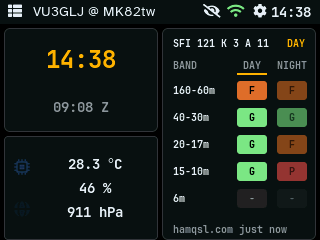
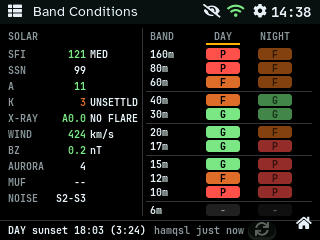
The band-conditions screen and the dashboard band tile (v0.2.4)
follow every rule here; use them as worked examples
(src/ui/screens/band_cond.cpp,
src/ui/widgets/widget_band.cpp).
Screen geometry
All sizes come from src/ui/layout.h; don’t write 320,
240 or 216 in a page.
 0                                                         319
 ┌───────────────────────────────────────────────────────────┐ 0
 │ ☰  Title                              ⊘  wifi  ⚙  HH:MM   │ status bar
 ├───────────────────────────────────────────────────────────┤ 24
 │                                                           │
 │             page content: view_container                  │
 │             SCREEN_W x CONTENT_H = 320 x 216              │
 │                                                           │
 │                                              keep clear   │
 │                                            ┌───────────┐  │
 │                                            │        ⌂  │  │
 └────────────────────────────────────────────┴───────────┴──┘ 239
home button, ~40 x 24 px- Status bar (
status_bar.cpp): menu button, page title, sleep, WiFi, settings and clock. Pages set the title throughui_navigate_local(); they never draw in the bar. - Content area: a page gets
view_container(320 x 216, below the bar) as its parent. Page coordinates start at the top-left of this area. - Home button (
home_button.cpp): a global button pinned 8 px from the bottom-right corner on every page except the dashboard. Leave the bottom-right ~40 x 24 px empty; put page buttons left of it (the xOTA and band-conditions refresh buttons sit 40 px or more from the right edge). - Sidebar (
sidebar.cpp): the menu slides over the content; pages don’t need to know about it. - Full-screen pages (APRS radar, APRS messages) hide the status bar and the home button and get 320 x 240; they must offer their own way back.
The shell and navigation
ui.cpp owns the persistent parts (status bar, sidebar,
home button, view_container) and swaps the page
content:
ui_navigate_local(PAGE_X)
  └─ lv_obj_clean(view_container)   deletes the old page
  └─ status_bar_set_title("...")
└─ draw_x_page(view_container) the new page builds itself- Pages are listed in
enum LocalPage(ui.h) and drawn in theif/elsechain ofui_navigate_local(). - The sidebar lists menu entries (
sidebar.cpp,enum DestScreen) and maps them to pages insidebar_selection_cb(). - Settings is the exception: it is a separate LVGL screen
(
settings_create()/settings_destroy()), not a page inview_container.
Pages
A page is one function,
void draw_x_page(lv_obj_t* parent), in
src/ui/screens/x.cpp with a header x.h. It
creates all its objects as children of parent.
Lifecycle. The page lives until the next
ui_navigate_local() cleans the container. Anything the page
keeps outside LVGL’s object tree must be released when its root object
is deleted:
s.timer = lv_timer_create(
    [](lv_timer_t*) { refresh(false); }, 2000, nullptr);
lv_obj_add_event_cb(s.root, [](lv_event_t*) {
    if (s.timer) lv_timer_delete(s.timer);  // not a child object
    s = Screen{};  // drop pointers to deleted objects
}, LV_EVENT_DELETE, nullptr);
Keep a page’s state in one static struct
(Screen s;), reset at the start of
draw_x_page() and on delete. A stale pointer to a deleted
label is the classic crash.
Data. Data comes from a manager in
src/services/, never from the network directly:
- The UI runs only on the main loop (LVGL isn’t thread-safe). Never
call
lv_*from a FreeRTOS task or a network callback. - Background tasks hand results to the main loop; the manager
publishes them, and the page polls with an LVGL timer (1-5 s). The band
screen compares
PropagationManager::get_view().versionwith the version it last drew, so several screens can follow the same data without clearing each other’s “dirty” flag (older managers useis_dirty()/clear_dirty()). - Redraw only what changed: update label texts and colours; don’t rebuild the page on every tick.
Text and fonts. Use the fonts in
fonts.h; their glyphs are ASCII only (0x20-0x7E). The
fallback is an icons-only font (font_symbols_10/14, from
Font Awesome 5) holding exactly the LV_SYMBOL_* icons in
use plus the degree sign and the bullet. A new LV_SYMBOL_
(in our code or a newly enabled LVGL widget) needs its code point added
to scripts/build_fonts.sh and the fonts regenerated, or it
renders as nothing. Don’t use other Unicode characters (☀, ⚠, ·): use
words (“DAY”, “GREYLINE”) or an LV_SYMBOL_.
| Font | Use |
|---|---|
font_jetbrains_10 |
dense tables and status lines (monospace: columns line up) |
font_jetbrains_14 |
larger table text (the tile with 3 groups or fewer) |
font_jetbrains_24 |
big numbers (clock) |
font_atkinson_10/14/18 |
prose, buttons, titles (font_atkinson_14 is LVGL’s
default) |
At 10 px a JetBrains Mono character is about 6 px wide: a 320 px line holds about 50 characters. Count before adding text to a crowded row; the band screen’s footer keeps each half under 25.
Touch. Make tap targets at least ~28 x 16 px.
Badges, labels and decorations inside a tappable tile must not swallow
the tap: lv_obj_set_clickable(obj, false) and
lv_obj_set_event_bubble(obj, true) (see
band_badge_create()).
LVGL: what is switched on
To save flash, QRPickle builds only the LVGL parts it uses
(include/lv_conf.h).
scripts/check_lvgl_usage.py runs before every build and
stops it when code uses a part that is switched off, or an
LV_SYMBOL_* the icons font lacks.
| Available | Switched off |
|---|---|
| label, button, image, textarea, keyboard (+ buttonmatrix), dropdown, checkbox, slider (+ bar), msgbox, tabview | arc, spinner, switch, list, menu, win, tileview, LED, line, canvas, span, imagebutton, animimg, arclabel, chart, scale, calendar, table, roller, spinbox |
| flex layout | grid layout, observer (subjects) |
fonts in fonts.h + icons-only fallback
(font_symbols_10/14) |
LVGL’s Montserrat fonts |
| RGB565 screen, RGB565A8 images, A8 masks | other colour formats (ARGB8888 layers among them) |
| image cache 16 KB, layer buffer 8 KB | larger caches |
Before using a switched-off part: set its
LV_USE_* to 1 in include/lv_conf.h, run
pio run -t clean, then check the flash size
(check_size.py) and the LVGL peak on the device
(/api/status → mem,
docs/MEMORY.md). A widget often brings theme styles and
icons with it: the guard tells you which icons to add to
scripts/build_fonts.sh. Prefer composing the available
parts (a “switch” can be a checkbox; a “list” a flex column of buttons,
as the WiFi scan does).
Dashboard and tiles
The dashboard (screens/dashboard.cpp) places tiles from
src/ui/widgets/. A tile is
lv_obj_t* widget_x_create(lv_obj_t* parent, WidgetSize size):
 ┌────────────────┬────────────────┐
 │ clock          │ band           │  QUARTER    160 x 108 (154 x 104)
 │ QUARTER        │ HALF_VERT      │  HALF_VERT  160 x 216 (154 x 212)
 ├────────────────┤                │  FULL       320 x 216
 │ sensor/weather │                │
 │ QUARTER        │                │  4 px gaps around and between
 └────────────────┴────────────────┘
WidgetSize values are WIDGET_SIZE_QUARTER,
WIDGET_SIZE_HALF_VERT and WIDGET_SIZE_FULL;
the sizes in brackets are what the tiles draw inside the gaps.
Tile rules:
- Panel style:
COLOR_BG_PANELbackground, 1 pxCOLOR_BORDER, radius 6. - Tapping a tile opens its page
(
ui_navigate_local(PAGE_X)); everything inside bubbles the tap. - A tile owns a refresh timer and deletes it on
LV_EVENT_DELETE, like a page. - If the user can choose what a tile shows, keep the choice in
config::Config(for exampleband_groups), offer it in the web console, and let the tile spread the chosen rows over its height (the band tile uses taller rows and the 14 px font for three groups or fewer).
Screen cycling
src/ui/screen_cycle.cpp shows the screens chosen in the
settings (cycle_enabled, cycle_screens,
cycle_seconds; default off, all seven screens, 10 s) one
after another.
- It pauses while LVGL has seen a touch in the last 2 minutes
(
lv_display_get_inactive_time(); at boot this also means it starts 2 minutes after the UI), while the backlight sleeps, and while Settings, the menu or APRS messages are open. The loop icon in the status bar (next to sleep and WiFi) is accent-coloured while cycling, muted while paused; tapping it holds the current screen until tapped again. - A screen that starts network work on open needs a passive
visit for cycling. xOTA:
xota_open_for_cycle()shows the spots already held, pauses nothing and refreshes only old data (POTA 5 min, SOTA 10 min). DX: while it is cycled the cluster stays connected and the cycle reads its socket (cycle::keeps_dx_connected()), instead of a new login every round. - Adding a screen to the cycle: a value in
cycle::Screen(keep the order: it is the bit inconfig::cycle_screens), raiseCYCLE_SCREENS_ALL, a case inshow(), a tick box in the web console, and a passive visit if the screen fetches or connects when opened.
Satellites screen
src/ui/screens/satellites.cpp (menu: Satellites,
PAGE_SATELLITES), laid out like Band Conditions: tabs
PASSES / EVENTS / GUIDE, a 172 px body and a footer (satellites and
passes held, feed age, refresh).
- PASSES: up to 9 rows in
font_jetbrains_10, one label each: local rise time (NOWwhile up, accent colour), name (12 characters), highest elevation, compass directions at rise and set, minutes above the horizon, andSSTV/ARISS(amber) for ISS passes during an event. A geostationary satellite (QO-100) gets one line with its elevation. Tapping a row shows that pass: times, directions and the frequencies, read from the cached feed file on the tap (SpaceManager::load_sat()); tapping the text goes back. - EVENTS: ISS SSTV events and school contacts as one wrapped label; for a contact, whether the ISS is above the horizon then. Ends with the data credit (SatNOGS DB is CC BY-SA: keep it).
- Data:
services::SpaceManager(view().version); holdlock()while reading the arrays, with a short timeout (never block the main loop on it). - LVGL pool on any tab or the pass view: 33-38 % (measured 2026-10-12).
Themes
Every colour comes from the theme: theme_color(TOKEN)
(theme.h). Never write lv_color_hex() in a
page or tile.
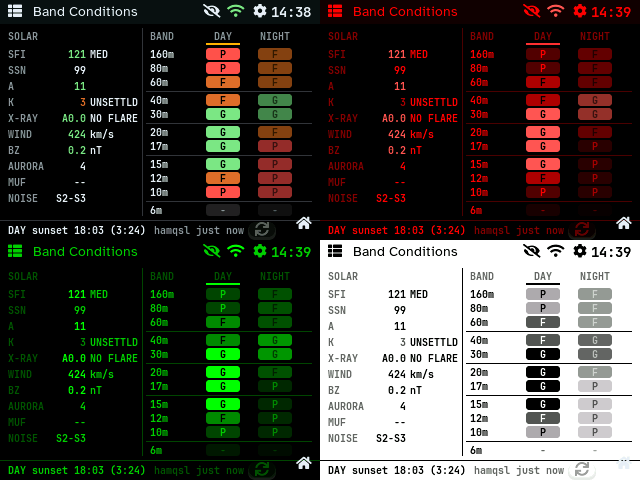
There are two kinds of tokens:
- Palette tokens (
COLOR_BG_APP…COLOR_BAND_DOWN): each theme defines all of them in theswitchintheme.cpp. - Semantic tokens (
COLOR_TEXT_ON_ACCENT,COLOR_STATUS_OK,COLOR_BG_BUTTON, …): theSEMANTIC[]table gives Classic’s exact colour and, for every other theme, the palette token to reuse. Add a semantic token when a new kind of element needs a colour none of the existing ones describes, not for a single widget.
| Use | Token |
|---|---|
| page background, tile background, borders | COLOR_BG_APP, COLOR_BG_PANEL,
COLOR_BORDER |
| text, secondary text | COLOR_TEXT_MAIN, COLOR_TEXT_MUTED |
| highlight (current column, selected tab) | COLOR_ACCENT_PRIMARY |
| good / fair / poor (ratings, value quality) | COLOR_BAND_GOOD, COLOR_BAND_FAIR,
COLOR_BAND_POOR |
| text on a coloured badge or button | COLOR_TEXT_ON_ACCENT (or the more readable of it and
COLOR_TEXT_MAIN, see below) |
| neutral button, “no data” badge | COLOR_BG_BUTTON |
| status dots | COLOR_STATUS_OK/ERROR/WARN/BUSY |
Rules that keep all seven themes readable:
- Contrast. One text colour can’t suit every badge in
every theme (E-Ink Light’s “poor” badge is light grey).
band_badge.cpppicks whichever ofCOLOR_TEXT_ON_ACCENTandCOLOR_TEXT_MAINhas the larger luminance difference from the badge. - Emphasis without new colours. To de-emphasise,
lower the opacity (
lv_obj_set_style_opa, 60 % stays readable in the dark single-colour themes); to emphasise, underline withCOLOR_ACCENT_PRIMARY. - Classic stays identical. Classic is the reference look; a refactor must not change it (compare screenshots, see below).
- Check every theme. Capture the page in all seven themes before committing (below).
Adding a theme: add it to enum ThemeId
before THEME_COUNT; raise config::THEME_ID_MAX
(a static_assert in theme.cpp reminds you);
give it a case with every palette token in
theme_color() and a name in theme_get_name();
add the <option> to the theme list in
data/www/index.html; add it to THEMES in
tools/device_screens.py; capture all pages.
Privacy
Screens are photographed and shared. Never show a secret (admin
password, WiFi password, API keys, APRS passcode) in clear: show
****** and reveal it only on a tap, hiding it again after a
few seconds. Treat the WiFi name, IP and MAC address the same way on
screens that are likely to be shared. (The Network screen gets this in
v0.2.4.)
Screenshots
tools/device_screens.py captures pages over WiFi from a
cyd-screens build (debug only, never released). Its
PAGES list must match enum LocalPage in
order.
Capture only new or changed screens, in the themes
the change affects (all seven when colours or layout changed), and
replace just those images in docs/pics/ and the README. A
full capture of every screen is needed only when something shared
changes (the shell, fonts, a theme’s palette).
pio run -e cyd-screens -t upload
QRP_ADMIN_PW=... python3 -I tools/device_screens.py \
    --ip <device-ip> --out release/shots/now \
    --themes 0,1,2,3,4,5,6 --pages 0,9 \
    [--compare release/shots/before]
The cyd-screens build has less free heap than a release
build: HTTPS requests with certificate checks (Cloud OTA) can fail on
it. Judge network behaviour on the cyd build.
Checklists
New page
src/ui/screens/x.{h,cpp}withdraw_x_page(parent); state in one static struct; timers deleted onLV_EVENT_DELETE.- Add
PAGE_Xtoenum LocalPage(at the end: the screenshot tool uses the numbers) and a branch with a title inui_navigate_local(). - If it belongs in the menu:
DEST_Xinsidebar.h, an entry insidebar.cpp, a case insidebar_selection_cb(). - Data through a manager; no
lv_*outside the main loop. - Keep the bottom-right corner free for the home button.
- Add it to
PAGESintools/device_screens.py; capture it in all themes; add the screenshot to the README table. Later changes to the page: recapture only this page.
New tile
src/ui/widgets/widget_x.{h,cpp}withwidget_x_create(parent, size), panel style as above.- Place it in
draw_dashboard_page(); tap opens its page. - Timer and pointers released on
LV_EVENT_DELETE. - A user choice of content goes in
config::Config+ the web console (seeconfig_json.cpp).
New colour need
- Use an existing token if one describes the element.
- Otherwise add a semantic token (Classic value + the palette token other themes reuse).
- Capture all seven themes.
Appendix G: Third-Party Notices
QRPickle’s own code is MIT-licensed (see License). The firmware and documentation
also contain the components below, each under its own licence.
In the firmware
| Component | Licence | Copyright / source | Licence text |
|---|---|---|---|
Atkinson Hyperlegible font (AtkinsonHyperlegible-Regular.ttf,
converted to src/ui/fonts/font_atkinson_*_raw.c) |
SIL OFL 1.1 | © 2020 Braille Institute of America, Inc. | assets/fonts/OFL-AtkinsonHyperlegible.txt |
JetBrains Mono font (JetBrainsMono-Bold.ttf, converted to
src/ui/fonts/font_jetbrains_*_raw.c) |
SIL OFL 1.1 | © 2020 The JetBrains Mono Project Authors | assets/fonts/OFL-JetBrainsMono.txt |
Font Awesome 5 Free symbols: 18 icons in
src/ui/fonts/font_symbols_*_raw.c, converted from
assets/fonts/FontAwesome5-Solid+Brands+Regular.woff (from
LVGL v8.3.11 scripts/built_in_font/) |
SIL OFL 1.1 | © Fonticons, Inc. | assets/fonts/OFL-LVGL-builtin.txt |
Font Awesome 7 Free icons “globe” and “microchip”
(assets/img/icon_*), recoloured |
CC BY 4.0 | © Fonticons, Inc. | creativecommons.org/licenses/by/4.0 |
| Solar-terrestrial data (fetched at run time, not redistributed) | Free use; credit requested | HAMQSL.com, Paul L Herrman, N0NBH | hamqsl.com/solar.html; credited in About and the band screen’s guide |
Weather condition icons (assets/img/[0-9]*) |
No published icon licence; attributed | © OpenWeather, openweathermap.org | assets/img/SOURCES.md |
International amateur radio symbol (splash screen; web console
favicon data/www/favicon.svg) |
Public domain | Denelson83, Wikimedia Commons | assets/img/SOURCES.md |
| Bangalore Amateur Radio Club (VU2ARC) logo (splash screen) | Not MIT; used with the club’s permission | © Bangalore Amateur Radio Club, barc.in | assets/img/SOURCES.md |
| LVGL 9.6 | MIT | © LVGL Kft, lvgl/lvgl | in the library |
| TFT_eSPI 2.5 | MIT (per library.json) | Bodmer, Bodmer/TFT_eSPI | in the library |
| ArduinoJson 7 | MIT | © Benoît Blanchon, arduinojson.org | in the library |
| ESPAsyncWebServer 3.12, AsyncTCP 3.5 | LGPL-3.0 | ESP32Async | in the library; QRPickle’s full source is public, so the firmware can be relinked with modified versions |
| Adafruit BME280 Library | BSD | © Adafruit Industries | in the library |
| Adafruit Unified Sensor | Apache-2.0 | © Adafruit Industries | in the library |
| Adafruit BusIO | MIT | © Adafruit Industries | in the library |
| XPT2046_Touchscreen | MIT-style | © 2015 Paul Stoffregen | in the library |
| Sgp4 (Hopperpop) 1.0.3, satellite passes | MIT | © 2016 Hopperpop; SGP4 code from “Fundamentals of Astrodynamics and Applications” by David Vallado (freely distributed) | in the library |
| Space feed data (fetched at run time) | CC BY-SA 4.0 (SatNOGS DB); CelesTrak and ARISS credited | SatNOGS, CelesTrak, ARISS | built by tools/space_feed/build_feed.py; credited in
About |
Arduino-ESP32 core 2.0.17 (platform
espressif32 @ 6.13.0) |
LGPL-2.1 | © Espressif Systems and contributors | espressif/arduino-esp32 |
| ESP-IDF 4.4 (incl. FreeRTOS, lwIP, mbedTLS) | Apache-2.0 (FreeRTOS: MIT, lwIP: BSD) | © Espressif Systems and the respective authors | espressif/esp-idf |

The libraries are fetched by PlatformIO at the versions pinned in
platformio.ini; their licence files come with them. Image
assets and their sources are listed in assets/img/SOURCES.md.
scripts/check_licenses.py runs on every build and in CI.
It fails when a library, font, platform version, image or file with a
foreign copyright line is added without being recorded here (or in the
image manifests).
In the documentation only
| Component | Licence | Copyright / source |
|---|---|---|
CYD pinout image (docs/pics/third-party/) |
CC BY-NC-ND 4.0 (not MIT) | © Renzo Mischianti, mischianti.org.
Unmodified; see docs/pics/third-party/README.md. |
Web installer page
The GitHub Pages installer loads ESP Web Tools (Apache-2.0) from a CDN; it is not bundled.